
Google Maps Extractor for Chrome
The Google Maps Extractor Extension pulls business leads from Maps without leaving the tab—~36 structured fields, reviews, merchant photos, and CSV, JSON, or XLSX exports.
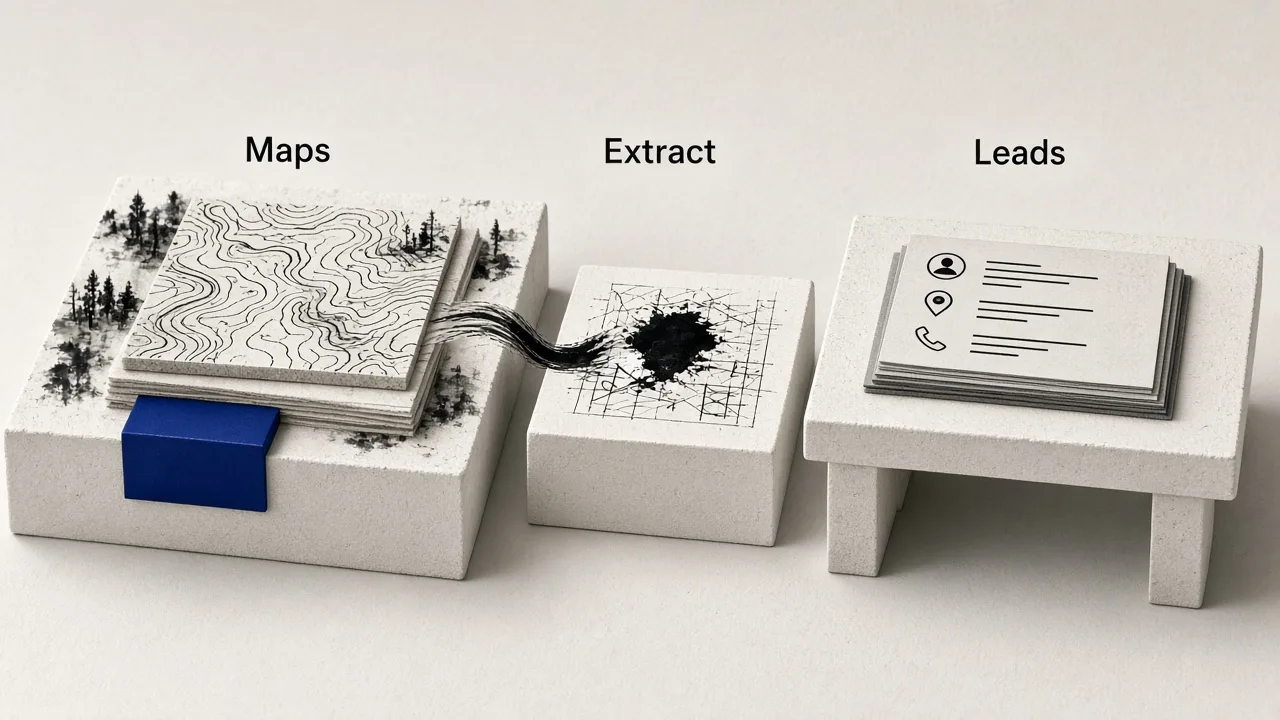
How Google Maps Extractor Extension works
Download once, load it unpacked, open Google Maps, and extract from the places you are already viewing.
01
Download and load unpacked
Download the official ZIP, unzip it, and load the folder in Chrome (or Edge, Brave, Arc) with Developer mode.
02
Open Google Maps
Search, browse a list, or open a place—stay in the Maps tab you already use for prospecting.
03
Extract and export
Pull fields, reviews, photos, or bulk jobs, then export CSV, JSON, or XLSX for CRM import.
Core extract
On-page Maps extract with ~36 fields
Extract from the Maps view in front of you—name, phone, website, ratings, IDs, and more into a CRM-ready table.
Browse-first workflow
Extract from search results and place cards—no keyword upload.
Dedup-ready identifiers
Maps IDs and coordinates help merge lists without duplicates.

Enrichment
Email & social contacts from business websites
When a listing has a website, enrich public emails and socials so the session ends with contacts—not just a Maps URL.
Public contacts only
Site-published emails and socials—empty cells stay empty.
Outreach-ready rows
Phone, website, and enriched contacts in one export.

Reviews
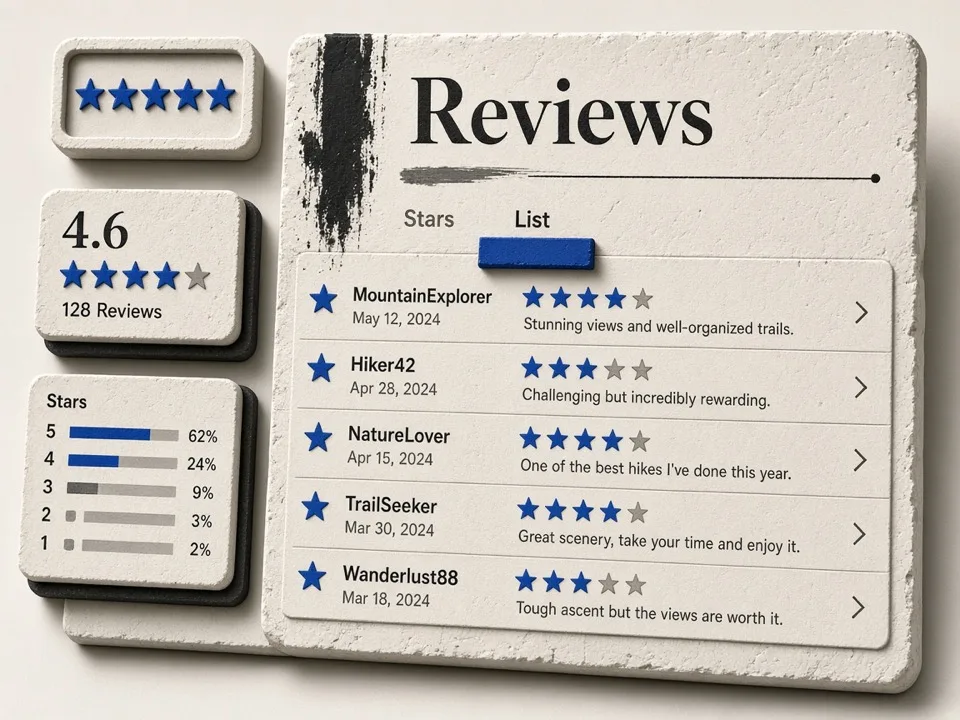
Export Google Maps reviews
Pull place reviews into exportable data for reputation research, competitor analysis, or local SEO.
Reputation research
Review text and ratings for side-by-side competitor compares.
SEO and content signals
Use review themes to brief content and landing pages.
Photos
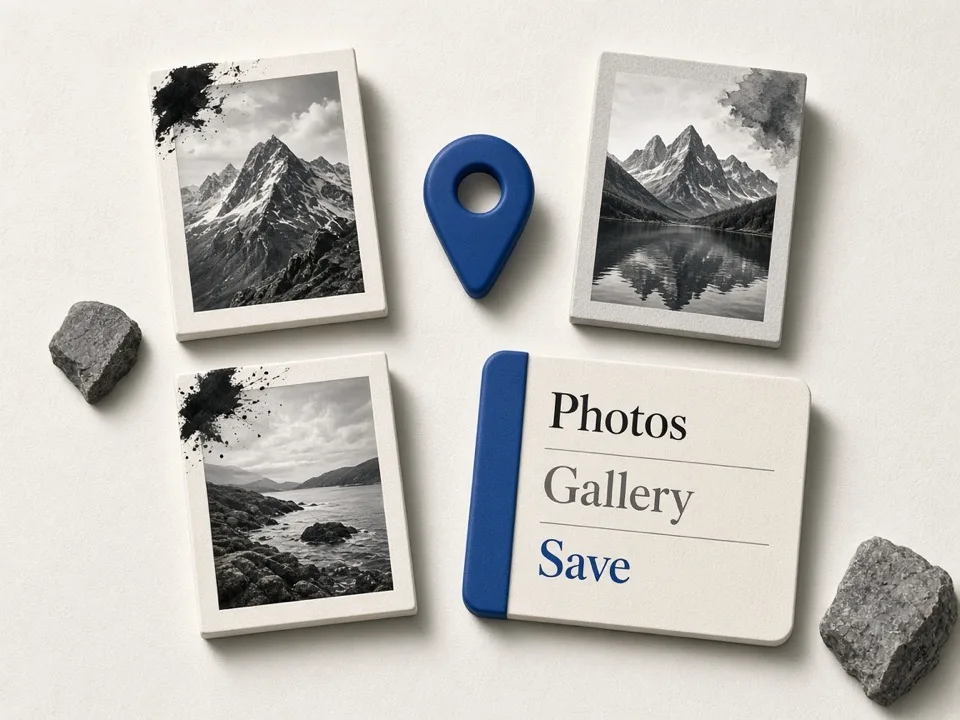
Merchant photo export
Download merchant gallery images for creative research and listing quality checks.
Gallery downloads
Grab merchant photos without saving files one by one.
Listing quality checks
Review visuals before outreach, audits, or creative briefs.
Bulk & export
Bulk jobs, saved lists, and flexible exports
Queue bulk jobs, walk Maps saved lists, and export CSV, JSON, or XLSX with column controls.
Saved list extract
Reuse Maps saved lists for territory pulls.
CSV, JSON, XLSX
Pick formats and columns for your CRM pipeline.

Choose your surface
Bulk Chrome Extractor vs single-place Leads Finder vs Online
Choose by task size and working surface. The products use different installation channels and separate extension/Online billing.
- Current
Best for Chrome Maps sessions
Interactive extract, reviews, merchant photos, saved lists, and on-tab enrichment while you browse.
View extension pricing Best for cloud keyword batches
Paste keywords, run jobs in the cloud, download zips, and connect agents when your workflow lives outside Maps.
Open Online Google Maps ExtractorBest for one business at a time
Use the Chrome Web Store Leads Finder panel to copy details and optionally enrich the listing in front of you.
Open Leads Finder
Google Maps Extractor is installed from our official ZIP because it is not listed in the Chrome Web Store. Leads Finder is installed from the Chrome Web Store. Download ZIP builds only from this official site.
Related tools on GMaps Lead Finder
Pair the Chrome extension with Online features and other Maps extractors.
Online Google Maps Extractor
Cloud keyword search, zip exports, and your Lead list on the homepage.
Start Online searchEmail extractor
Deep dive on email and social enrichment across Online and extensions.
Email feature pageManual install guide
Download the ZIP and load the extension in Chrome, Edge, Brave, or Arc.
Install guideGoogle Maps Leads Finder
Single-place Leads panel on Google Maps—free business details, Pro email & socials.
Leads FinderExtension vs Online vs Agent
Buyer guide: when to use the Chrome extension, Online jobs, or AI Agent/MCP.
Read the guideGoogle Maps Extractor Extension pricing
Plans and limits for the Chrome extension (separate from Online cloud plans). Install first, then upgrade inside the extension.
Purchase inside the extension after install. Quotas are separate from Online (cloud) plans.
| Feature | Free | Pro | Business |
|---|---|---|---|
| Monthly leads extract | 1,000 | 50,000 | 200,000 |
| Custom export setting | |||
| Extracts basic information | |||
| Extracts reviews per place | 20 | 250 | 2500 |
| Extracts photos & videos per place | 10 | 100 | 1000 |
| Extracts phone number | |||
| Extracts email and social medias | |||
| Extracts your place lists | |||
| Bulk extracting automatically |
FAQ
Install Google Maps Extractor for Chrome
Download the ZIP, load it unpacked, open Maps, and start extracting.