
Extract Google Maps to CSV
Turn Google Maps searches into CSV business leads—one file per keyword in a downloadable zip. Use the Online local lead extractor for cloud jobs, then open the files in Excel, Sheets, or your CRM.
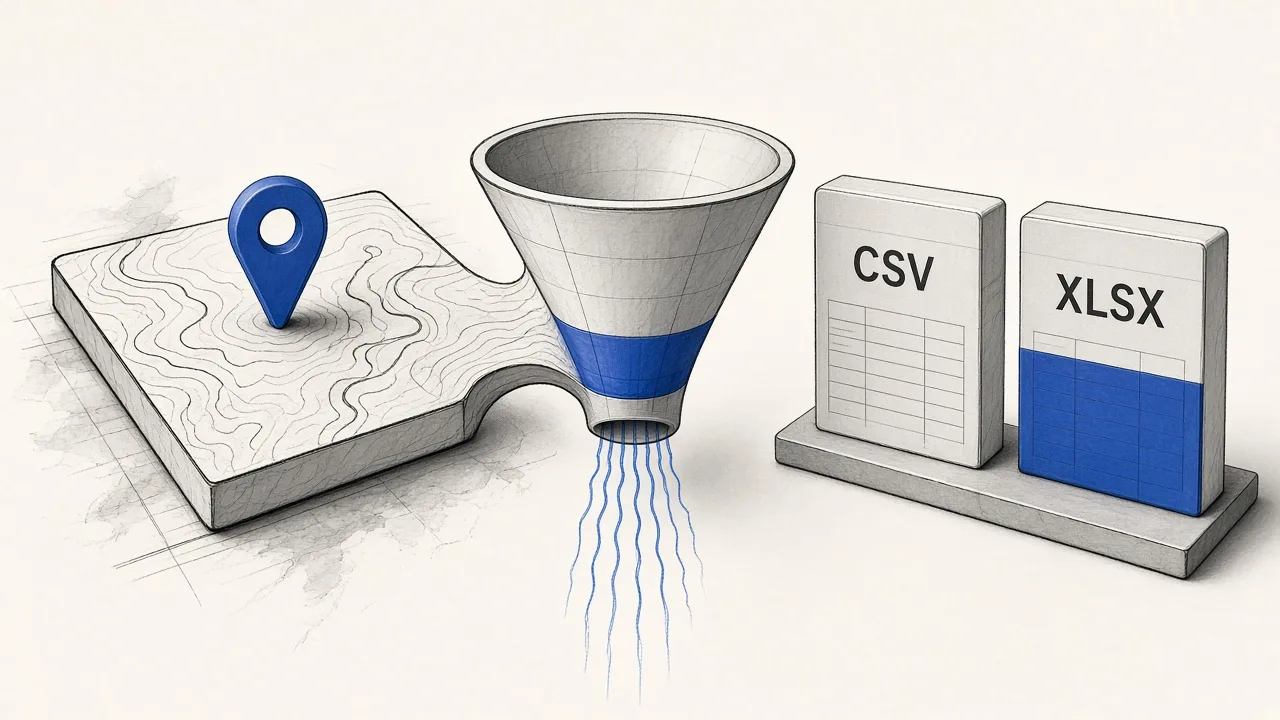
How Google Maps to CSV works
Three steps from keywords to a zip of spreadsheet-ready Google Maps business leads.
01
Paste local keywords
Add queries like “dentist austin”—pair a niche with a city for the cleanest Google Maps lead lists.
02
Extract & enrich places
The Online Google Maps Extractor crawls Maps results into structured rows, then adds public emails and socials when websites exist.
03
Download a CSV zip
Get one CSV per keyword in a single zip—ready to import, filter, or hand to an AE without splitting mega-sheets.
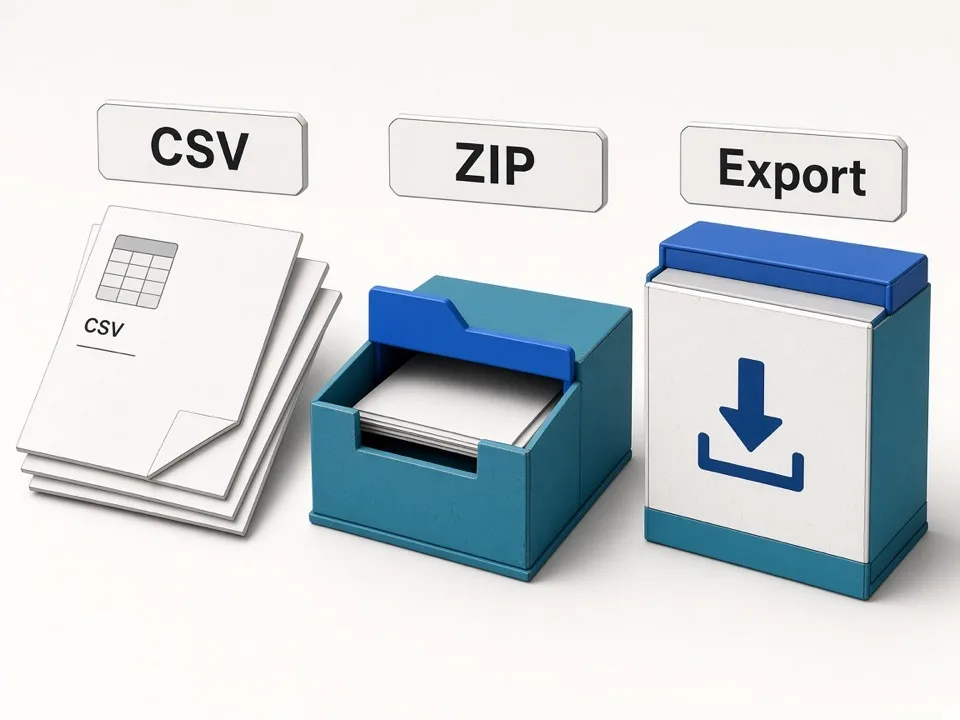
Zip export
One CSV per keyword, packaged as a zip
Each Maps keyword becomes its own CSV inside one download—no manual sheet splitting.
Keyword-scoped files
One CSV per query for clean city × niche handoffs.
CRM-friendly packaging
UTF-8 CSVs open in Excel, Sheets, and most CRMs.
Business leads
Google Maps business leads, not a screen dump
Structured rows: names, phones, websites, ratings, Maps IDs, and enrichment columns.
Outreach-ready columns
Phone, website, emails, and socials beside Maps IDs.
Repeatable field order
Stable ~36-column headers across every export job.

Local lead extractor
Online local lead extractor for keyword batches
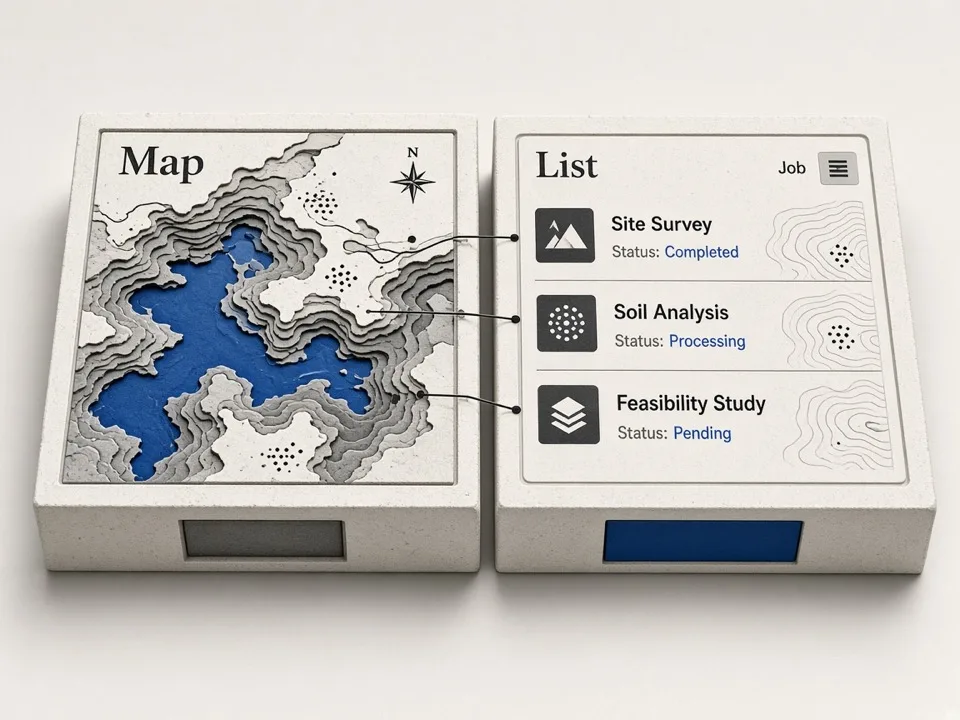
Run keyword lists in the cloud, keep a Lead list, and export CSV zips when done.
Batch by city or niche
Stack keywords for territory coverage—no tab babysitting.
Lead list downloads
Re-download completed or partial jobs anytime.
Enrichment
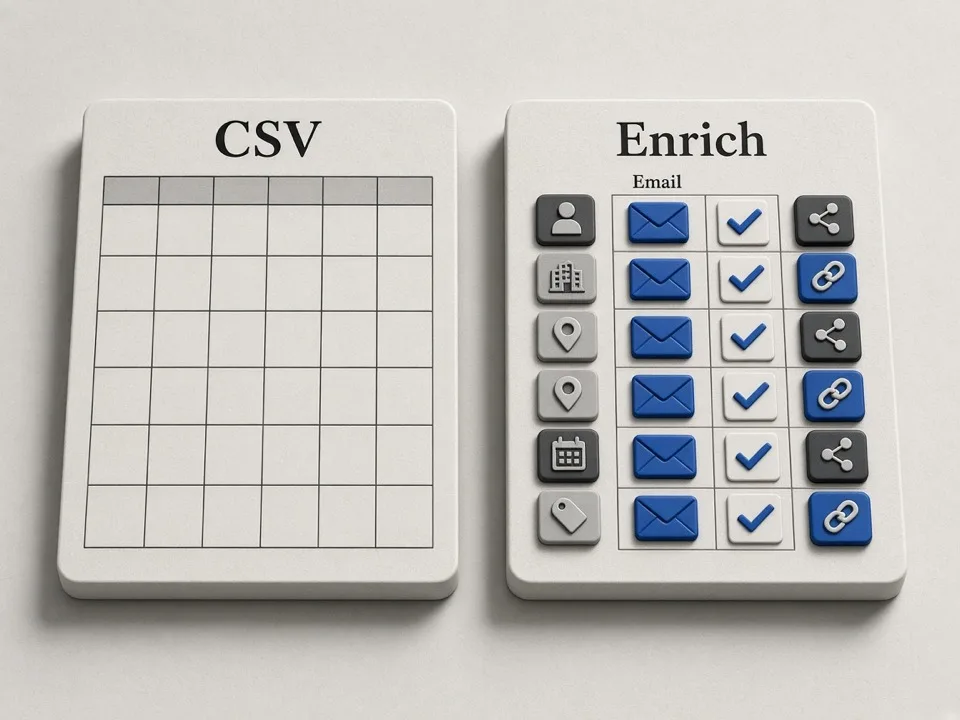
Emails & socials land in the same CSV
Public emails and socials from business sites join the same CSV row when found.
Public contacts only
Empty cells mean nothing public—never invented contacts.
Same row as Maps fields
Enrichment sits next to phone, website, and Place Id.
Choose your surface
Online CSV zip vs Chrome extractors
Use Online when you want keyword batches and zip-per-keyword Google Maps to CSV exports. Use Chrome Google or Bing extractors when you are already browsing the map and want on-tab CSV/XLSX.
All CSV columns explained
Every Google Maps to CSV export uses these headers in order—match them once in your CRM or spreadsheet template.
| Field | What you get |
|---|---|
| Name | Business name as shown on Google Maps. |
| Fulladdress | Full formatted address string for mail merge and display. |
| Street | Street line portion of the address when available. |
| Municipality | City or locality for filtering and territory splits. |
| Categories | Google business categories (for example Dentist, HVAC). |
| About | Short business description or about text when present. |
| Phone | Primary public phone number from the listing. |
| Phones | Additional public phone numbers when listed. |
| Claimed | Whether the Google listing appears claimed. |
| Review Count | Number of Google reviews on the place. |
| Average Rating | Average star rating from Google reviews. |
| Review URL | URL to read or leave reviews for the place. |
| Cid | Google customer/place CID used in some Maps deep links. See CID. |
| Fid | Internal feature id pair (business_id) used alongside CID. See Fid / business_id. |
| Latitude | Latitude coordinate for mapping and distance filters. |
| Longitude | Longitude coordinate for mapping and distance filters. |
| Featured Image | Featured photo URL for the listing when available. |
| Time Zone | IANA time zone for the place location. |
| Website | Business website URL from the Maps listing. |
| Domain | Normalized hostname derived from the website. |
| Opening Hours | Weekly opening hours when published on Maps. |
| Google Maps URL | Direct Google Maps URL for the place. |
| Place Id | Stable Google Place Id for dedupe and re-lookup. See Place ID. |
| Emails | Public emails found on the business website during enrichment. |
| Facebook Links | Facebook profile or page URLs found on the site. |
| Instagram Links | Instagram profile URLs found on the site. |
| Youtube Links | YouTube channel or page URLs found on the site. |
| Tiktok Links | TikTok profile URLs found on the site. |
| Linkedin Links | LinkedIn company or profile URLs found on the site. |
| Twitter Links | X/Twitter profile URLs found on the site. |
| Search Keyword | The keyword that produced this row—critical for multi-keyword zips. |
Toggle which columns appear under Account after sign-in.
Sample Google Maps leads CSV
Preview sample restaurant rows with the same headers as a real export.
Sample rows mirror a typical Online export so you can validate columns before running a job.
Who extracts Google Maps to CSV
Same outcome—structured local business leads—different jobs to be done.
Agencies & list builders
Deliver niche × city Google Maps business leads as clean CSVs clients can open without cleanup.
SDR & outbound teams
Feed weekly territory grids into CRM with phones, websites, and enrichment columns already on the row.
Local SEO & GBP shops
Build prospect lists by category and metro, then pitch with real contact fields—not screenshots.
Related tools
Pair CSV export with enrichment, Online extract, extensions, and agents.
Google Maps Reviews Extractor
Scrape review rows by place URL, short link, or business_id.
Open reviewsGoogle Maps Photos Extractor
Scrape place photo URLs by Maps URL, short link, business_id, or Place ID.
Open photosFAQ
Extract your first Google Maps CSV zip
Paste keywords on the homepage local lead extractor, finish the job, then download the zip from your Lead list.